Showing posts with label excel. Show all posts

Using Sparklines

A sparkline is a very small line or bar chart, but, unlike typical charts which are designed to show as much information as possible and are separate to the data (in some cases even on a different sheet) sparklines fit into a single cell allowing them to appear immediately alongside the data for greater impact.


  • Click on the Insert tab on the ribbon and choose one of the sparkline styles.
  • Highlight the cells containing the data for the sparkline and specify where you would like sparkline to appear.
  • Click OK


Once the sparkline is in place, you will have an additional tab on the ribbon called Sparkline Tools, with all the formatting options available.


Are there any other Excel tips and tricks that you'd like to see next?  Let me know by leaving a comment and don't forget to share this post with others by using the buttons below.
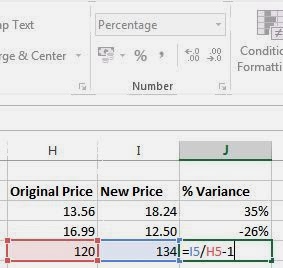
How to work out a % variance in MS Excel

This is something we probably all use quite often.  Or at least we should but often don't really know how.  That gorgeous dress is on sale and you want to brag to everyone about the % you saved.  You're giving a staff member an increase and you want to be able to tell them the %.  You're selling lemonade on the pavement and you want to work out your profit margin.... there are a million different uses for this formula

Using the example below, I'm working out the % difference between the old and new prices.  You need to click into the cell that you would like to contain the answer and then create a formula by:
  • Typing the = sign
  • click on the NewPrice
  • type /
  • click on the OriginalPrice
  • type -1
  • press enter
The answer will appear as a decimal, so you can format that to display as a percentage.  

Are there other calculations you struggle with?  Leave a comment and let me know... you might be might inspiration for the next installment of MissusMck's tips.

Sorting months into their correct order

So you think you've got sorting sorted?  What about when you sort your Excel list by month?  It's not going to be quite the order we're used to.  Watch this short video clip on how to get Excel to sort in a logical order rather than alphabetical order using Custom Sort


Subscribe to my YouTube channel by clicking here

It just takes a double click - copying a formula in Excel

So, assuming you've already created formulae in MS Excel, you've no doubt realised you can copy this formula.  Perhaps this is a quicker way you are not already familiar with...

  • Click onto the cell that contains the formula you want to copy
  • Notice how the cell has a dark border around it?   And also that it doesn't quite join up properly in the bottom right hand corner?  That little blobby shape in the corner is called the Fill Handle - I think it's OK to call it the blobby thing though ;)

  • Place your mouse pointer right over the "blobby" Fill Handle
  • Now you'll see that your mouse pointer changes shape to a thin black cross
  • At this point you probably think... yeah, yeah... I know... click and drag.  But nope, that's not my next step... why don't you try...
  •  Double click


Cool huh?  Sadly, as with many things... there are caveats
The double click method only works for copying a formula down, not in any other direction.  It also requires that there is information in the column immediately to the left of the copy location.